Photos of receipts, scanned forms, whiteboard notes, or a set of product shots often need to travel as one file instead of a scattered folder of JPGs. A PDF solves that: it keeps every image in a fixed order, on its own page, viewable the same way on any device. The tricky part is getting the order, orientation, and sizing right before you send it.
Why a PDF beats sending loose images
Email clients and messaging apps often reorder or compress attached images without warning, and a recipient has to open each file separately. A single PDF preserves your intended sequence, opens in one window, and prints cleanly with consistent margins — which matters for anything official, like expense receipts or signed forms photographed page by page.
Getting the page order right
Before converting, lay out your images in the order they should appear — cover page first, supporting pages after. Most conversion tools let you drag thumbnails to reorder them after upload, which is far easier than renaming files to force a sort order.
Choosing orientation
- Portrait — the safer default for scanned documents, forms, and receipts.
- Landscape — better for wide photos, whiteboards, or presentation slides captured with a phone camera.
- Mixed orientations in a single batch are usually centered and scaled to fit whichever page shape you pick, so very wide or very tall images may have extra white space around them — cropping beforehand keeps that tight.
Keeping file size reasonable
Phone cameras often produce images several megabytes each, and a dozen of them in one PDF adds up fast. If the resulting file feels too large for email, running it through a PDF compressor afterward usually solves it without a visible quality difference on screen.
Doing it in your browser
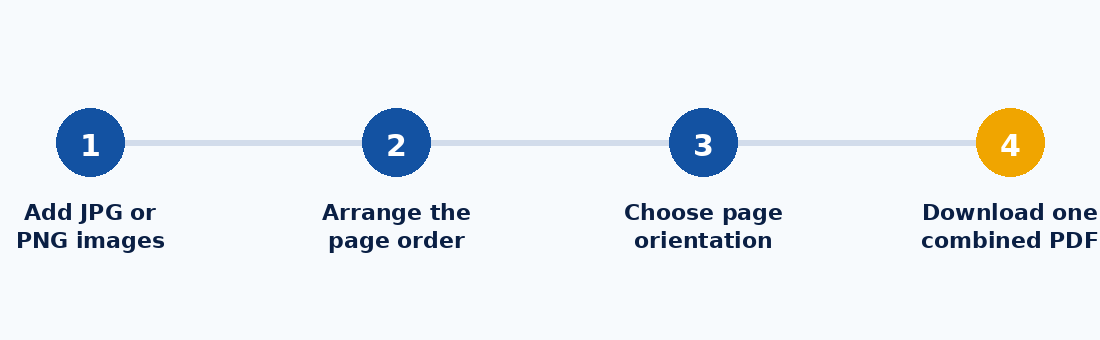
KhanxTools' Image to PDF tool reads your JPG or PNG files directly in your browser, lets you drag them into the right order, and builds the finished PDF without uploading anything to a server.