
Contracts arrive as separate signature pages, invoices get split by month, and reports come back from three different reviewers as three different files. Merging turns that scattered set into a single PDF that can be read, printed, or filed as one document — without retyping or re-scanning anything.
Why merging beats sending files separately
A single combined PDF guarantees the recipient reads pages in the order you intended, and it's easier to file, search, and forward than a batch of similarly-named attachments. It also avoids the common mistake of a reviewer opening the wrong file version out of a group of five.
Getting the order right before you merge
The output follows the exact order you set beforehand — merging doesn't try to guess a logical sequence from filenames or content. Arrange the files as a list first, in the order you want them to read, then combine. Most merge tools let you drag files up or down in a queue so you can fix the order without re-uploading.
What happens to quality and formatting
Merging works by copying each page from the source files into a new document, rather than re-rendering them. That means text stays sharp, embedded fonts stay intact, and images keep their original resolution — there's no compression step involved unless you add one afterward.
Handling password-protected files
A PDF that's encrypted or requires a password to open usually needs to be unlocked first, since a merge tool can't read pages it doesn't have permission to access. Once unlocked, it merges like any other file.
Merging in your browser
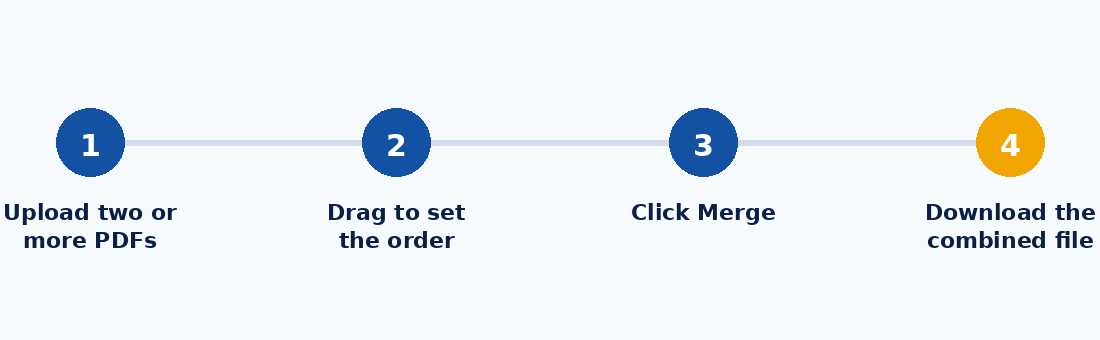
KhanxTools' Merge PDF tool reads all your files locally, lets you drag them into the right sequence, and stitches them into a single downloadable PDF — nothing is sent to a server.